by
by 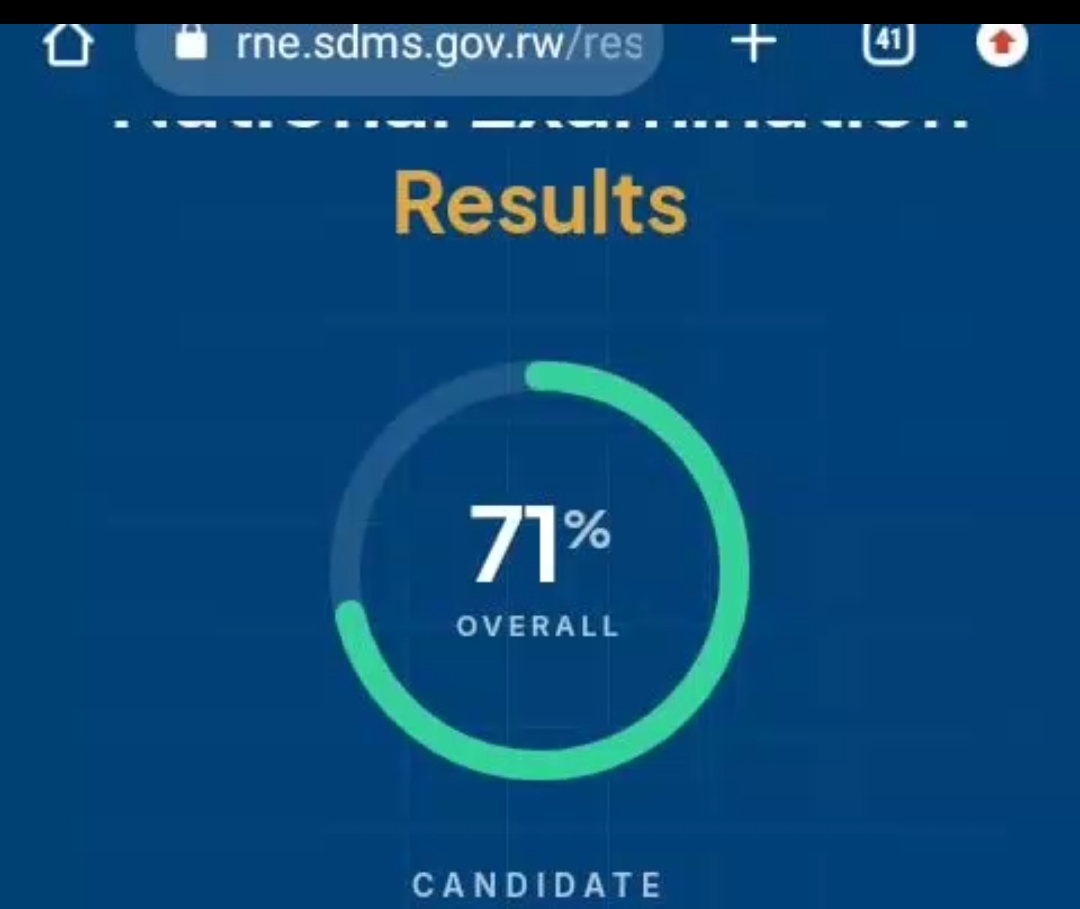
How to Check and Download P6 National Examination Results 2025/2026
How to Check and Download P6 National Examination Results 2025/2026 on SDMS (rne.sdms.gov.rw)
Every year, headteachers and school administrators across Rwanda rely on the School Data Management System (SDMS) to access official P6 National Examination results. If you are searching for how to check, view, or download your school’s Primary Leaving Examination (P6) results slip for the 2025/2026 academic year, this guide walks you through the exact process on the NESA/SDMS platform at rne.sdms.gov.rw.
Click here Check and Download P6 National Examination Results 2025/2026
Whether you are a headteacher preparing report slips, a school administrator compiling pass rates, or a district education officer verifying results, this step-by-step guide will help you navigate the SDMS National Exams module quickly and accurately.
What Is SDMS and Why It Matters for P6 Results
The School Data Management System (SDMS) is Rwanda’s official platform, managed under the Ministry of Education (MINEDUC) and the National Examination and School Inspection Authority (NESA), for managing school data — including student registration, exam attendance, and national examination results. For Primary 6 (P6) National Examinations, SDMS is the single source of truth for candidate marks, pass/fail status, averages, and downloadable results slips.
Accessing your school’s P6 results through SDMS ensures you get accurate, verified data directly from NESA rather than relying on unofficial sources.
Step 1: Log In and Set the Academic Year
Start by logging into SDMS at rne.sdms.gov.rw with your headteacher credentials. Once logged in, open the Change User Preferences window and set:
- Fiscal Year — e.g., 2025/2026
- Academic Year — select the specific examination session you want (e.g., 2024/2025 or 2025/2026)
Getting the correct academic year is essential, since P6 results are tied to the exact examination session they belong to.
Step 2: Open Exam Marks and Select the Examination Level
Next, navigate to NAT. EXAMS → Exam Marks in the left-hand menu. From the Examination dropdown, choose your level:
- Primary (this is where P6 National Examination results are found)
- Ordinary Level
- Advanced Level
- Professional Education
- TVET
For P6 results specifically, select Primary from this list.
Step 3: Load Your School’s Results
Unlike Ordinary and Advanced Level exams which require selecting a subject combination (such as MCE, MEG, MPC, MPG, PCB, or PCM) before results appear — Primary (P6) results load directly once the examination and level are selected, since P6 candidates are not grouped by combination. The system will automatically pull the National Examination results for your school.
Step 4: Read the Summary and Download the Results Slip
Once your P6 results load, SDMS displays a full summary, including:
- Total candidates
- Average score
- Highest and lowest marks
- Pass and fail counts and percentages
Below the summary, you’ll find a detailed Candidate Results table listing each candidate’s code, name, mention, and weighted percentage, with a Detail option for individual results.
To save your P6 results slip, click either:
- Export to PDF — for a printable, shareable results slip
- Export to Excel — for further analysis or record-keeping
If your school has multiple levels or sessions to check, simply repeat Steps 2–4 for each one.
Checking P6 Results on SDMS
- Log into rne.sdms.gov.rw and set the correct Fiscal Year and Academic Year
- Go to NAT. EXAMS → Exam Marks and select “Primary”
- Let the system load your school’s P6 candidate results
- Review the summary and export the results slip as PDF or Excel