by
by 
Guide for Downloading National Examination Results
A Four-Step Guide for Headteachers SDMS, National Examinations Module
This guide walks headteachers through the process of retrieving and downloading National Examination results for their school using the School Data Management System (SDMS), under the National Examinations module.
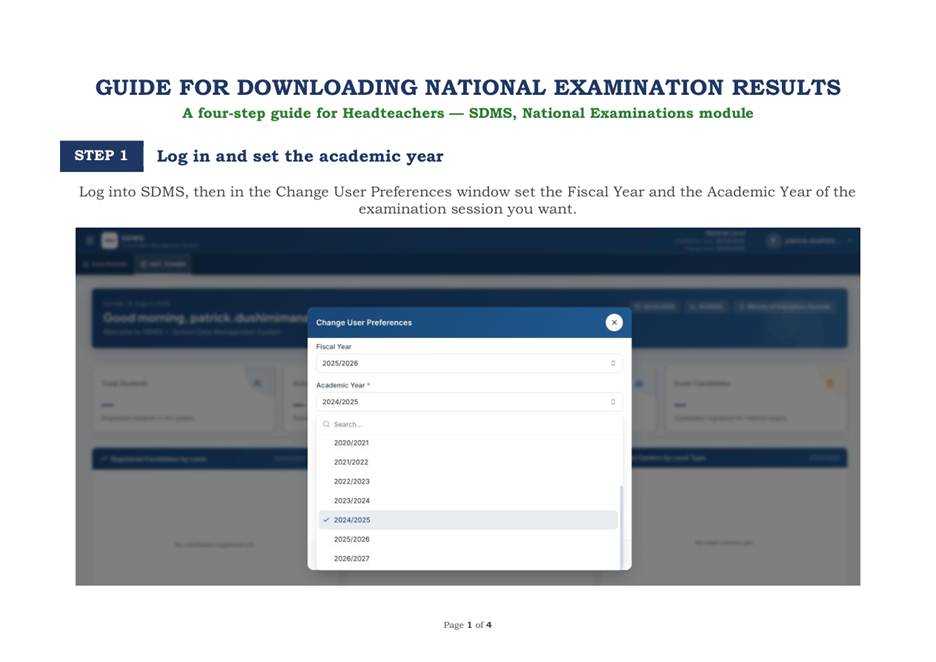
Step 1: Login and Set the Academic Year
Begin by logging into SDMS. Once inside, open the Change User Preferences window and set the correct Fiscal Year and Academic Year for the examination session you wish to view.
This step ensures that the system pulls results for the correct examination period, since SDMS stores data across multiple academic years.
Kindly Join Our WhatsApp Channel Here For An Upcoming Info’s
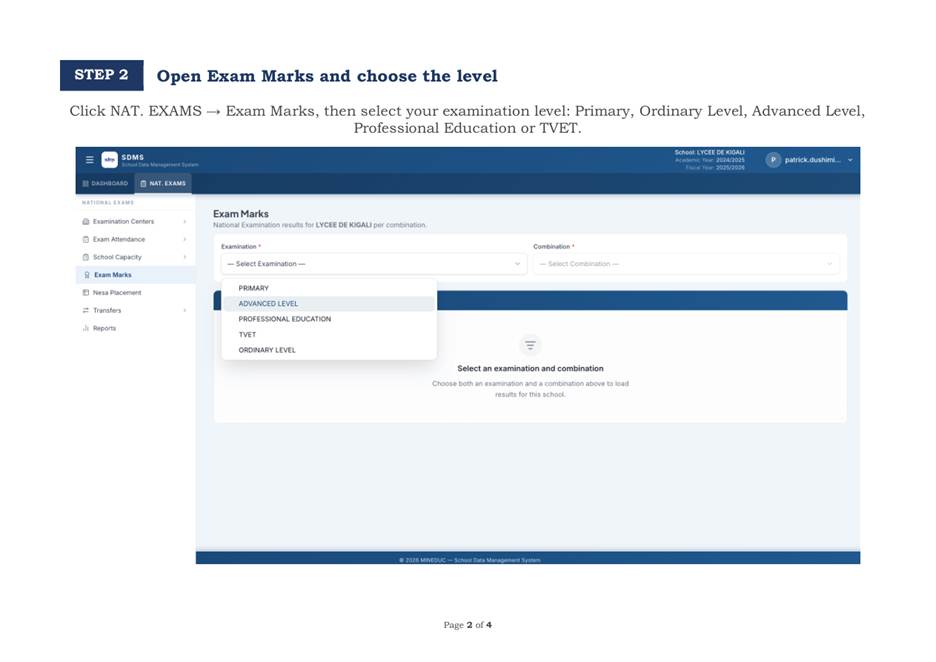
Step 2: Open Exam Marks and Choose the Level
Navigate to NAT. EXAMS → Exam Marks. From here, select the examination level relevant to your school:
- Primary
- Ordinary Level
- Advanced Level
- Professional Education
- TVET
Choosing the correct level filters the system to display only the combinations and results applicable to that category of learners.
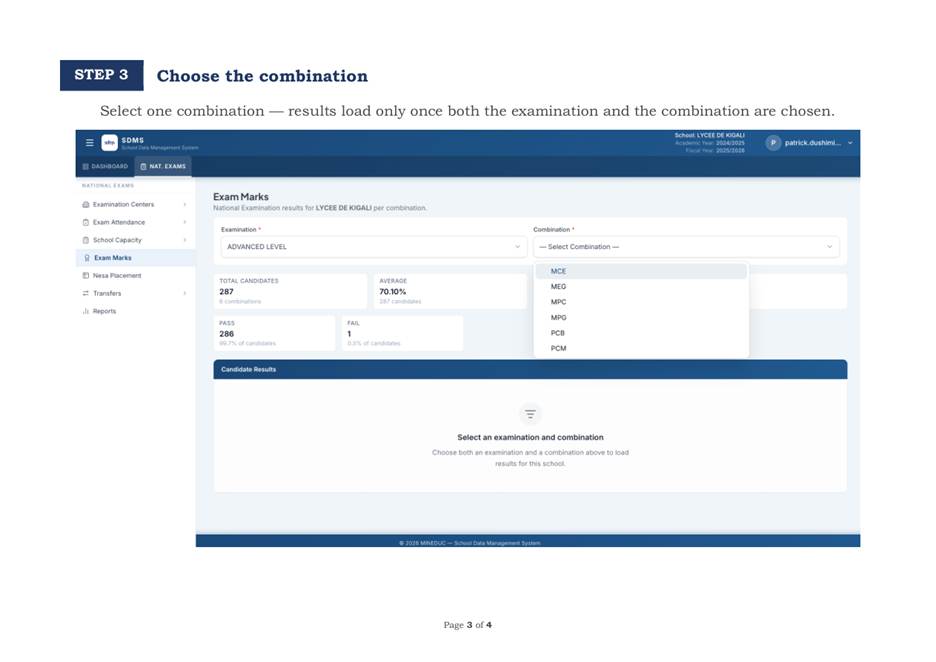
Step 3: Choose the Combination
After selecting the examination level, choose the specific combination you want to view (for example, MCE, MEG, MPC, MPG, PCB, or PCM).
Results will only load once both the examination level and the combination have been selected. Only one combination can be viewed at a time.
Kindly Join Our WhatsApp Channel Here For An Upcoming Info’s
Step 4: Read the Summary and Download
Once a combination is selected, SDMS displays a summary of results, including:
- Total Candidates
- Average
- Highest and Lowest scores
- Pass and Fail counts
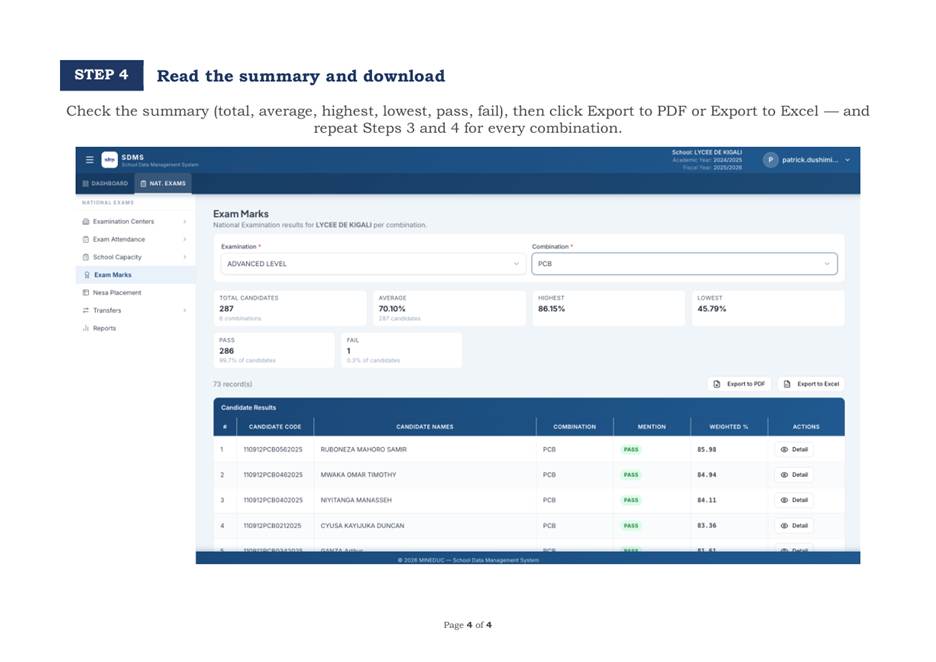
Below the summary, a detailed table lists each candidate’s code, name, combination, mention, and weighted percentage.
To save the results, click Export to PDF or Export to Excel.